

Summary
Key account elements
Your Nyx private account is an account on the Aztec blockchain, which was designed from the ground up to enable private assets and actions. You use two things to control and use your Nyx private account:- Your Nyx public L1 account (an Ethereum connected wallet) governs your Nyx private account. It signs offchain messages to approve all of your private account actions. Learn more.
- Your passkey(s) are used to end-to-end encrypt the small amount of data we store to facilitate your use of Nyx across devices. This ensures that you can load things like your contacts when you sign into Nyx, but we cannot read this data. Learn more.
How to not lose account access
If you lose access to Nyx, we cannot help you! This is because of the privacy and security guarantees of Nyx: only you can see and use your private account data and only you are in control of your account. Accessing your private Nyx account requires:- A signature from your connected Ethereum public account.
- One of:
- a passkey you’ve created for your account
- an account backup file.
- Maintain control of your connected Nyx L1 public account. Do not share your seed phrase, password, or anything else that gives you ownership of this account with anyone else.
- Ensure passkey access by using a cloud-synced passkey and/or passkeys stored on multiple devices.
- Take regular account backups so that you can recover access in case of losing access to your passkeys.
Passkeys
What they are used for
Your Nyx passkey(s) are used to end-to-end encrypt your data so it can only be viewed by you in your browser. We store a limited amount of data on our backend so that you can use Nyx across devices - things like your contacts and any active transaction claim secrets. For your protection, we use a passkey security feature to encrypt this data in your browser before sending it to our backend, meaning we only store an encrypted version we cannot read. It can only be read once it’s sent back to your browser and is decrypted with the same passkey. This passkey feature is called the “PRF extension,” and this blog post gives a good overview of how it works.Don’t lose access to your account: ensure passkey availability
Your passkeys encrypt and decrypt your private account secret. To ensure that only you have control and visibility of your funds, we have no way of recovering your account access if you lose all your passkeys.If you lose all your passkeys, you can’t view or use your private account. Please ensure your passkey availability by:
- Using a synced passkey (iCloud Keychain, Google Password Manager, etc)
- Enrolling backup passkeys on multiple devices.
What passkey options are supported?
The passkey security feature we use to protect your data - see section directly above - isn’t supported everywhere yet. In the tables below, we show what we’ve confirmed works. We haven’t been able to test all popular options yet, so if something is missing from the tables it may still work. We’ll do more testing and expand our tables over time. Mac OS 26 (Tahoe)
We did not test all options so others may work as well.
Windows 11
We did not test all options so others may work as well.
Other OSes
- Generally, Chrome had the best PRF support on the platforms we tested so we recommend you start there.
- Nyx does not currently work with iPadOS, iOS, or Android. We are currently not optimizing our UI for mobile devices. We are focused on desktop use and will expand to support mobile over time, once we’ve refined our desktop UX.
Connected wallets
Your Nyx public account (connected wallet) governs your private account, authorizing your private account transactions by signing offchain messages. Learn more. Any Ethereum wallet will work, including:- browser extension wallets
- mobile app wallets
- hardware wallets
Can I use a hardware wallet?
Yes, with the following requirements:- An Ethereum address governed by your hardware wallet (for Testnet with Ledger, this requires enabling developer mode so that you can create Sepolia accounts).
- Blind signing enabled (we are actively working on supporting clear signing).
- Use the WalletConnect option to connect your wallet app (e.g. Ledger Wallet) to app.nyx.money.
- Use your wallet app + hardware wallet to sign transactions.
Account backups
Summary
Account backups are used to recover access to your account if you lose access to all of your Nyx passkeys (but still have access to the associated Ethereum public account). You can download a backup in the settings dropdown in the menu bar in the upper right. Later, you can use it to recover your account if needed.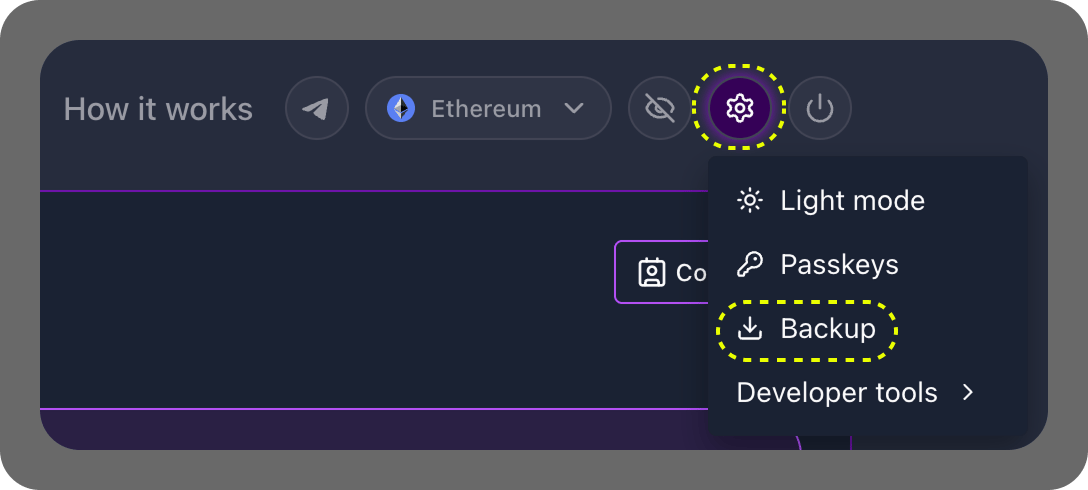
Backup files are downloaded to the downloads folder on your device.
File contents
Backup files are unencrypted files that contain:- The backup file creation timestamp.
- A version number. This is needed as, for example, when we migrate from Aztec Alpha v5 to Alpha v6, the v5 backup files will not be compatible with v6.
- Your private account’s private key (called
accountSecretin the file). Keep the file safe and secure (e.g. encrypt the file with a password). - A hash of your Aztec L2 private address. This is used for verification during the account recovery process.
- Your Ethereum and Aztec contacts. Note that we currently store
aztecContactsV5(the contacts for Aztec v5, the current version) andaztecContacts(any contacts you had from Aztec v4). You should consideraztecContactsinvalid and no longer useful as everyone’s address changed from v4 to v5. - Any unused claim secrets (used to claim funds coming into your private account).
- The latest Ethereum L1 and Aztec L2 block numbers you saw when you last used Nyx (called
Watermarksin the file). This way, when you use Nyx again, we start reading history from these points to make sure we find any relevant activity for you. Without these, we’d have to start reading from the beginning to make sure we didn’t miss anything and Ethereum is 11 years old! - A checksum. This is used for verification during the account recovery process to ensure the file wasn’t tampered with.
Recommendations and key info
We recommend that you:- Take regular backups so that your latest backup contains your latest contact and claim information.
- Do not edit your backup files. We check during account recovery that the file has not been tampered with and edited files will be considered invalid.
- Store your backups in a secure manner (e.g. password protected encryption).
- Consider backing up your backups, so that if your device dies you maintain access.
Recover from backup
The recovery process is accessible during login when you do not complete the passkey step. When you recover from a backup:- All your existing passkeys - which you’ve presumably lost access to - become invalid and you will be asked to create a new passkey as a part of the restoration process.
- Your contacts will be set to whatever the backup file contains. So if you added a contact after your last backup was taken it will not be among your updated contacts list.
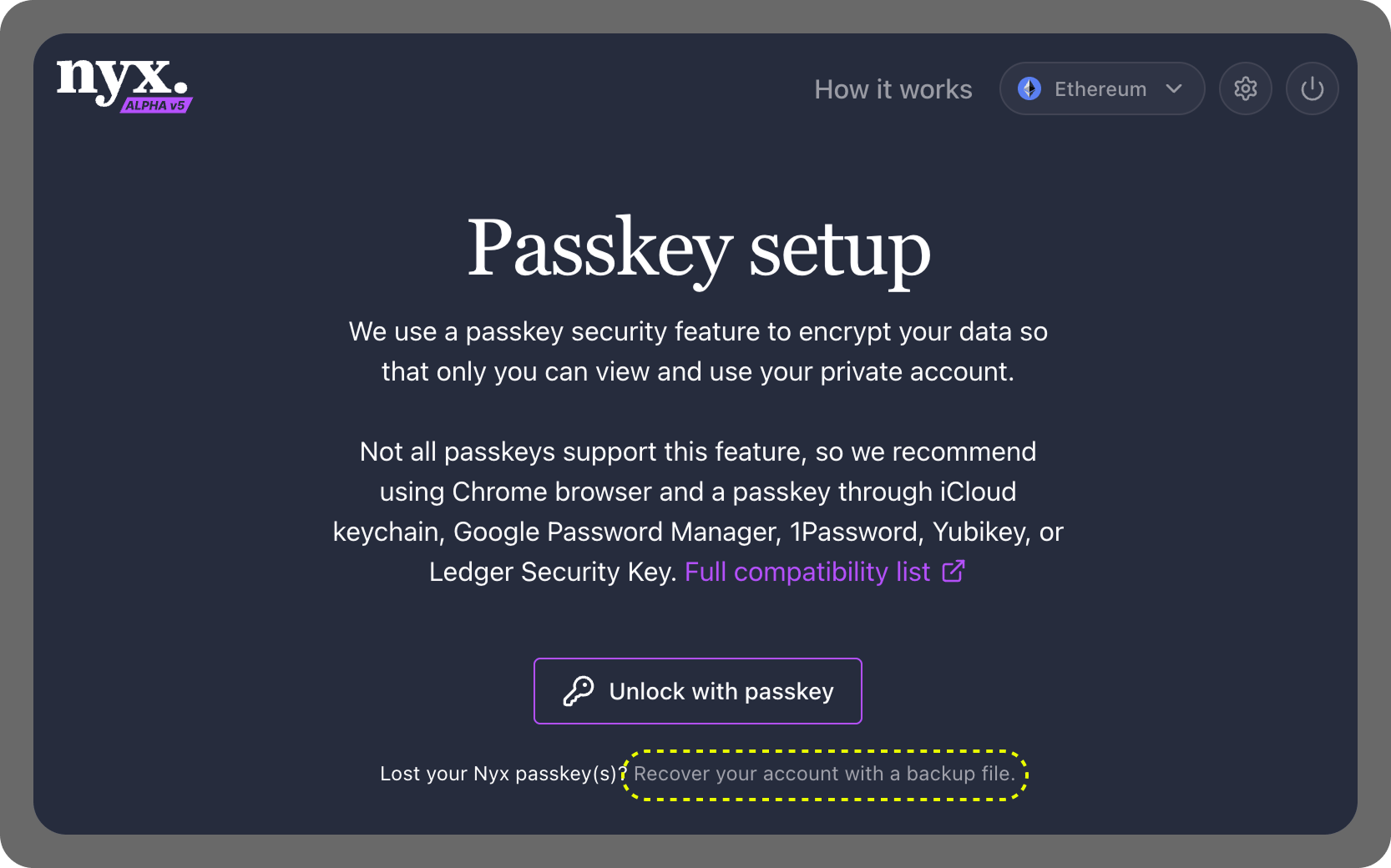
If you lose access to all of your Nyx passkeys and fail the passkey step, click the link to recover from a backup file.